
How to Transfer Chats from WhatsApp to GB WhatsApp Safely
Worried about losing your WhatsApp chats? Discover the easiest way to transfer chats from WhatsApp to GB WhatsApp. Backup, restore, and enjoy all your messages on the new app safely.
WhatsApp is used to talk with family, friends, and everyone is using this app. Many people want to move from the official WhatsApp to GB WhatsApp. Because they want extra features and more control. When switching apps, the biggest problem is losing old chats. This guide explains the full process in simple wording so beginners can easily understand and complete the transfer safely. Let’s explore it.
What is GB WhatsApp?
GB WhatsApp is a modified version of the original WhatsApp app. This app is not official, and that is why it is not available on the Google Play Store. Some developers modified the original WhatsApp and added features such as hiding online status, custom themes, sending large files, and more.
GB WhatsApp offers greater flexibility than regular WhatsApp, and many users prefer to use it. You must get it from third-party websites, because it is not the original application. This means you have to be careful about security. Backing up your original WhatsApp conversations is important before downloading GB WhatsApp, so you can restore them without losing any data.
Transfer Chats from WhatsApp to GB WhatsApp (Step-By-Step)
It’s important to get prepared before moving your chats. Make sure you have the most recent version of WhatsApp installed first. This will reduce the number of backup and restoration errors.
Secondly, make sure that your storage has enough space for the backup data. These files can get pretty big, especially if you have a lot of pictures and videos.
Thirdly, make sure the battery on your phone is more than fifty percent charged. Your phone might affect the file if it shuts off while backing up or restoring.
Finally, make sure that the phone number you use in both applications is the same. To recover the previous messages, GB WhatsApp must be verified with the same number.
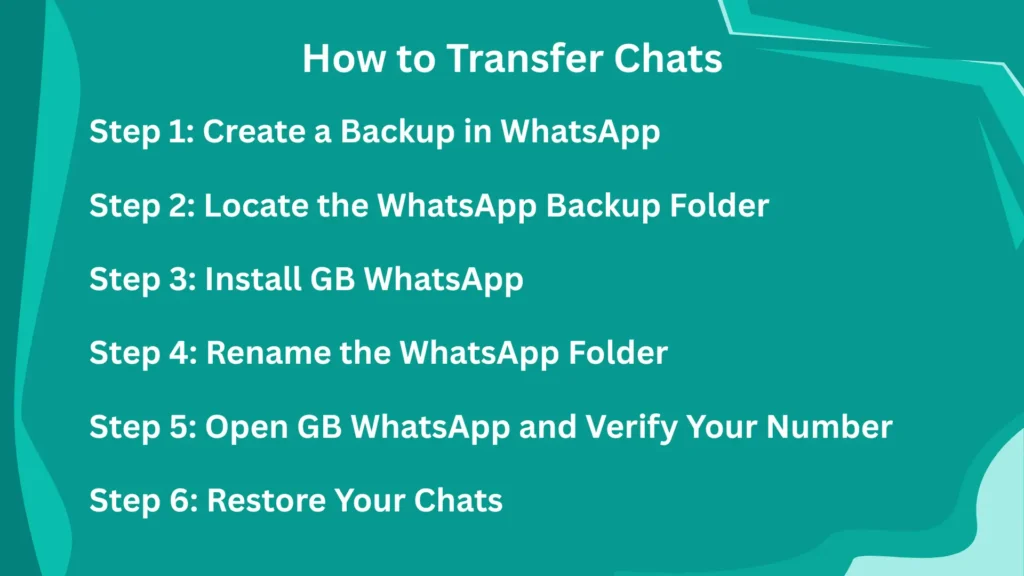
Step 1: Create a Backup in WhatsApp
The most important step is to create a new backup using the official WhatsApp app. Go to Settings after opening WhatsApp. Next, select Chat Backup after pressing on Chats. The option to back up your chats will be visible to you. After pressing the button, watch for the procedure to finish.
Depending on how big the conversation is, this could take a few minutes. Be careful not to exit the application while the backup is in process. Making a local backup is usually preferable to depending only on Google Drive. GB WhatsApp mostly recovers conversations from your phone’s local storage. Your chat data will be saved in your phone’s storage after the backup process is finished.
Step 2: Locate the WhatsApp Backup Folder
You must find the folder where WhatsApp keeps the data after creating the backup. Go to Internal Storage after opening your file manager. You’ll search for a WhatsApp folder. Databases is another folder that is located inside the WhatsApp folder. Your chat backup files are stored in this folder.
Dates are included in the names of these files. The file you just created is the most recent. You mustn’t remove or change these files. They are necessary to recover chats in GB WhatsApp. The chat history may be permanently erased if you accidentally remove it.
Step 3: Install GB WhatsApp
You now need to set up GB WhatsApp on your phone. You must download the APK file from a reliable website because GB WhatsApp is not accessible through the Play Store. It is important to take care while choosing a website, as some may offer you dangerous downloads.
You must first enable the installation of unknown sources in the Settings on your mobile device before installing the application. You shouldn’t open GB WhatsApp on your phone after installation. When installing GB WhatsApp, you must correctly set up your backup folder so that it can identify your previous chats.
Step 4: Rename the WhatsApp Folder
This is a really important step. The folder in GB WhatsApp is named a little differently than in the original WhatsApp. The application won’t recognize the backup file if you don’t change the folder’s name.
Find the WhatsApp folder in your Internal Storage by going to your File Manager. Give this folder a new name of GB WhatsApp. Make sure the name is typed correctly, without any additional spaces. GB WhatsApp will be able to use the backup files if the folder is renamed.
Step 5: Open GB WhatsApp and Verify Your Number
Now you can open GB WhatsApp. You have to agree to the terms and conditions and then enter the same phone number you were using on the official WhatsApp. You will receive an OTP code for verification.
You have to enter the code to confirm your number. After verification, GB WhatsApp will search for backup files in your storage. If everything was done correctly, the app will automatically detect your chat backup. You will see a message asking if you want to restore chats.
Step 6: Restore Your Chats
Tap on Restore when the restore option appears, then wait for it to complete. Depending on the size of your backup file, this could take a while. Tap Next once the restore is finished. Your previous messages will then appear in GB WhatsApp.
It should contain all of your messages, including pictures and videos. Don’t worry if your videos or pictures haven’t appeared yet. It can take some time for them to load in the background.
Common Problems and How to Fix Them
Users may experience problems when transferring in a few cases. One of these is that the backup file is not recognized by GB WhatsApp. Usually, this occurs when the folder name is incorrect. Therefore, making sure that the folder name is changed to GB WhatsApp is important.
When users don’t create a fresh backup before removing the original application, another issue appears. When the backup file is not recent, it is impossible to recover the messages in such a situation. As a result, users should remove GB WhatsApp and repeat the process.
Important Safety Warning
If GB WhatsApp offers more features, it’s important to be mindful of the possible risks. Your personal information might not be as secure using this unofficial application as it would be using the official WhatsApp.
Since WhatsApp is against modified versions of its application, there is a slight chance that your account will be blocked. Think about whether the extra functionality justifies the possible risks before choosing. It might be recommended to continue using the official app if security and privacy are your top priorities.
Final Thoughts
The procedure of moving WhatsApp chats to GB WhatsApp is not particularly difficult, but it must be done carefully. Making a good backup and renaming the folder appropriately is the most important step. You risk losing your chats if you don’t follow all the instructions.
Before removing the original app, make sure everything is in working order. In addition, confirm that your backup file is safely stored. You can move all of your important chats to GB WhatsApp without erasing your important chat history if you follow the steps properly.
Frequently Asked Questions
1. Can I transfer all chats from WhatsApp to GB WhatsApp?
Yes, you can transfer chats using a local backup. Messages, photos, and videos will be restored if the backup is complete. Verify GB WhatsApp with the same phone number.
2. Why is my backup not detected in GB WhatsApp?
This usually happens if the folder name is wrong or the backup is missing. Rename the WhatsApp folder to GB WhatsApp and check the Databases folder. The app will then detect the backup.
3. Do I need to use the same phone number for the transfer?
Yes, the same phone number is required. GB WhatsApp restores chats only for the verified number. A different number will not load your old data.
4. Can I transfer chats from Google Drive to GB WhatsApp?
No, GB WhatsApp does not support Google Drive restore. You must create a local backup in WhatsApp. Then restore it from your phone storage.
5. Is it safe to move chats to GB WhatsApp?
GB WhatsApp is a third-party app and not official. There may be privacy risks or account issues. Always download safely and keep a backup before switching.